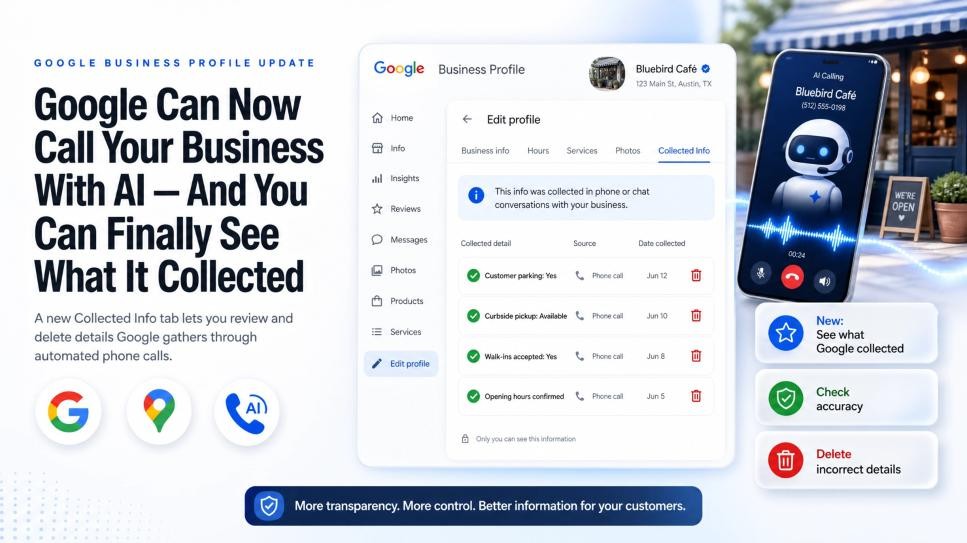
A new “Collected Info” tab lets you review and delete the details Google gathers about your business through automated phone calls.
Google has quietly begun rolling out a new Collected Info tab inside the Google Business Profile dashboard — the control panel behind the listing customers see on Google Search and Maps. For the first time, business owners can see exactly what information Google has gathered about them through its automated phone calls, check whether it’s accurate, and delete anything that’s wrong. The update was spotted by local-search expert Darren Shaw, and confirmed by Google.
What’s actually happening
Google sometimes calls businesses using an AI assistant to confirm everyday details, whether you have customer parking, offer curbside pickup, accept walk-ins, or your current opening hours. These calls are automated (and monitored and recorded by a live supervisor), and Google uses what it hears to keep your profile current. Until now, owners would often notice their profile details change with no idea where the change came from.
What the Collected Info tab does
Found under Edit profile → Collected info, the new tab shows a clear list of the details Google gathered from recent calls or chats — along with the source and the date collected. In Google’s words: “This info was collected in phone or chat conversations with your business. It’s used to match your business with customers looking for services like yours.” From here you can:
- See See what was collected from recent calls
- Check Check whether each detail is accurate
- Delete Delete any individual detail from Google Search and Maps
Deleting a detail removes it from Google’s records but doesn’t change the other information already on your profile.
Why this matters: The details Google collects feed directly into how you appear when customers search. Inaccurate info: wrong hours, or a “no parking” that should be “yes”, can quietly cost you visits. This tab gives you a clear window into what Google thinks it knows, and a fast way to fix it.
What to do
- Check for the tab. Open your Business Profile, click Edit profile, and look for Collected info. It’s rolling out gradually, so it may not appear for you yet.
- Review every detail. Confirm each collected item is accurate, and note where and when it was gathered.
- Delete what’s wrong. Remove any incorrect detail so it stops showing on Search and Maps.
- Adjust call settings if needed. To change or stop automated calls, go to More → Business Profile settings → Advanced settings, then “Google automated calls and text messages.”